G-Suite
Synology NAS
Symantec
FortiGate
FortiAnalyzer
ติดต่อเรา
Lorem ipsum dolor sit amet, consectetur
adipiscing elit. Nullam fermentum fermentum
tortor nec dignissim. Nunc sit amet augue dui.
Integer vestibulum vel eros a sollicitudin. Nunc
in rutrum mi. Aliquam mollis ac urna eget
molestie. Aenean vel maximus nisi. Nullam
ligula nunc, iaculis eu leo accumsan,
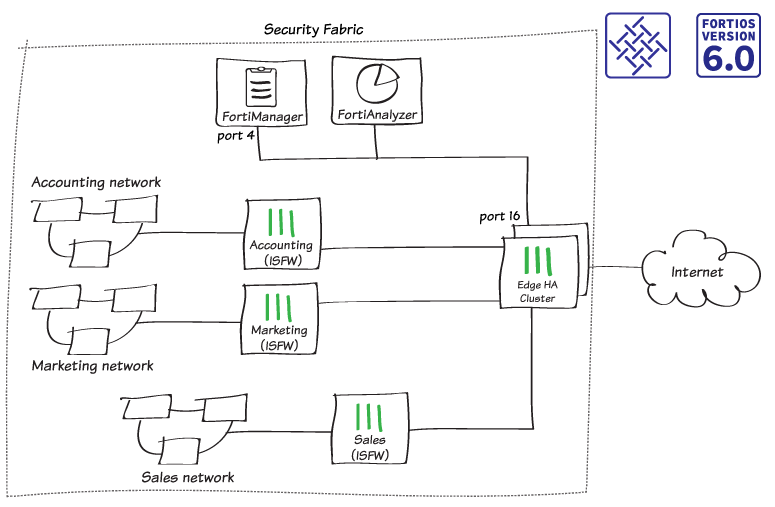
ในกรณีนี้จะเพิ่ม FortiManager ลงใน Security Fabric วิธีนี้ช่วยลดความยุ่งยากในการจัดการเครือข่ายเนื่องจากคุณจัดการอุปกรณ์ FortiGate ทั้งหมดในเครือข่ายของคุณจาก FortiManager ในตัวอย่างนี้คุณเพิ่ม FortiManager ไปยัง Security Fabric ที่มีอยู่โดยมี cluster HA ชื่อ Edge เป็น root FortiGate และอีก 3 FortiGates ภายใน: Accounting, Marketing, และ Sales. Network resources เช่น FortiManager ตั้งอยู่บน subnet 192.168.65.x
1. การเชื่อมต่อ FortiManager และ Edge
ในตัวอย่างนี้ port 16 บน Edge เชื่อมต่อกับ port 4 บน FortiManager
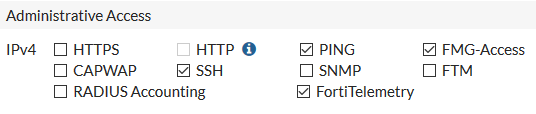
1.1 => ในการกำหนดค่า Interface บน root FortiGate นั้น ให้เชื่อมต่อกับ Edge โดยไปที่ “Network > Interfaces” และแก้ไข port 16
=> กำหนดค่า “Administrative Access” โดยเลือกค่า FMG-Access และ FortiTelemetry เพิ่มเข้ามา
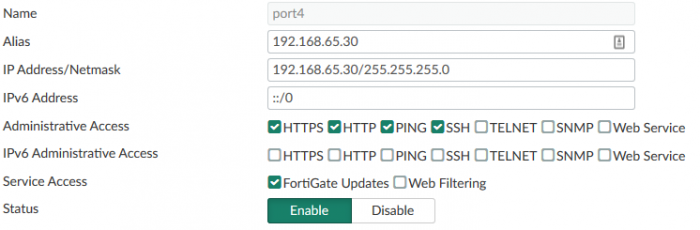
1.2 => ในการกำหนดค่า Interface บน FortiManager ให้ทำเชื่อมต่อกับ FortiManager โดยไปที่ “System Settings > Network” จากนั้นเลือก All Interfaces และแก้ไข port 4
=> ตั้งค่า IP Address/Netmask เป็น IP Address ภายใน (ในตัวอย่าง 192.168.65.30/ 255.255.255.0)
1.3 => เลือก Routing Table และเพิ่ม default route สำหรับ port 4 จากนั้นตั้งค่า Gateway เป็น IP Address ของ port 16 บน Edge

1.4 => หากยังไม่ได้ทำ ให้ทำการเชื่อมต่อ FortiManager และ Edge
2. การอนุญาตให้ FortiManager มีการเข้าถึงอินเทอร์เน็ต
เพื่อจะสื่อสารกับ FortiGuard ตัว FortiManager จึงต้องการการเข้าถึงอินเทอร์เน็ต
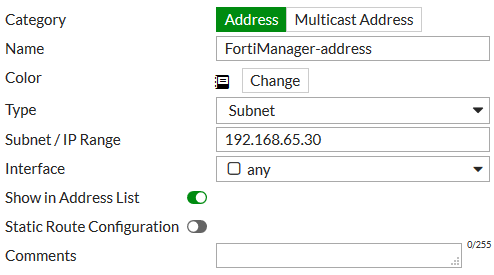
2.1 => ในการสร้าง Address สำหรับ FortiManager, ให้ทำการเชื่อมต่อกับ Edge โดยไปที่ “Policy & Objects > Addresses” และสร้าง address ใหม่
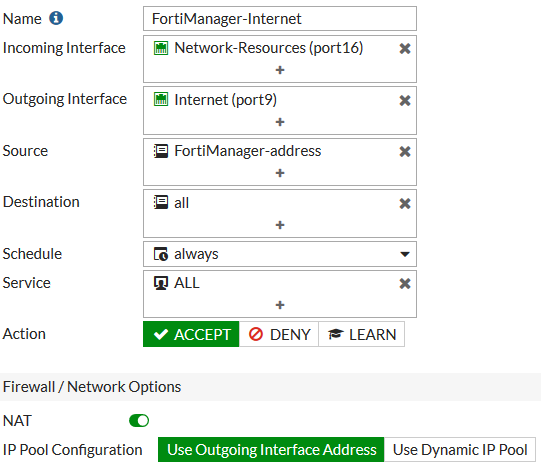
2.2 => ในการอนุญาตให้ FortiManager เข้าถึงอินเทอร์เน็ตได้ ให้ไปที่ “Policy & Objects > IPv4 Policy” และสร้าง policy ใหม่
3. การกำหนดค่า Central management
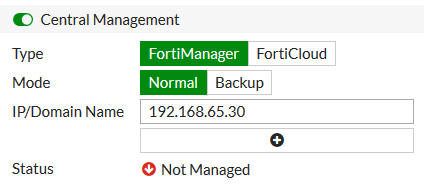
3.1 => ในการเปิดใช้งาน Central management, ให้เชื่อมต่อกับ Edge โดยไปที่ “Security Fabric > Settings” และเปิดใช้งาน Central Management
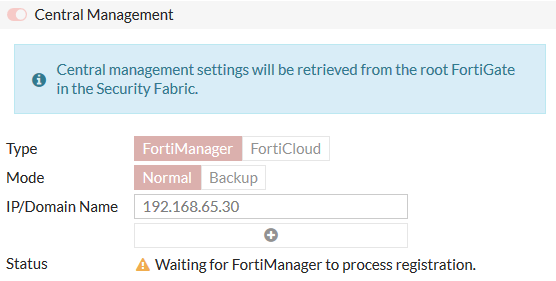
=> ตั้งค่า “Type” เป็น FortiManager, “Mode” เป็น Normal และตั้งค่า “IP/Domain Name” เป็น IP Address ของ port 4 บน FortiManager
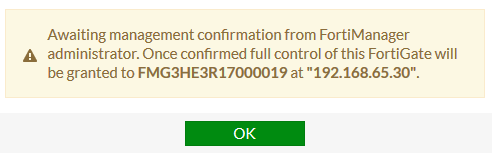
3.2 => หลังจากเลือก Apply ข้อความจะปรากฏขึ้นเพื่อระบุว่า FortiManager ได้รับข้อความแล้ว และ Edge กำลังรอการยืนยันการจัดการ
3.3 => Edge ในฐานะ root FortiGate จะ pushes การตั้งค่า FortiManager ไปยังอุปกรณ์ FortiGate อื่น ๆ ใน Security Fabric ในการตรวจสอบสิ่งนี้, ให้ทำการเชื่อมต่อกับ Accounting และไปที่ “Security Fabric > Settings”
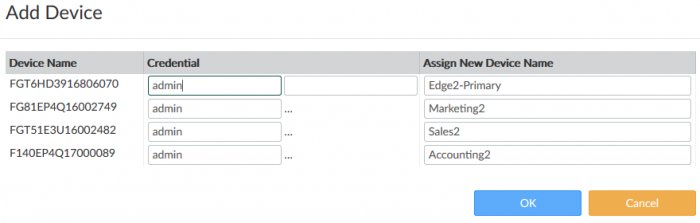
3.4 => เพื่อยืนยันการเชื่อมต่อ Management, ให้เชื่อมต่อไปยัง FortiManager และไปที่ “Device Manager > Unregistered Devices” เลือก FortiGate devices และเลือก + Add

3.5 => เพิ่ม FortiGate devices ไปยัง FortiManager
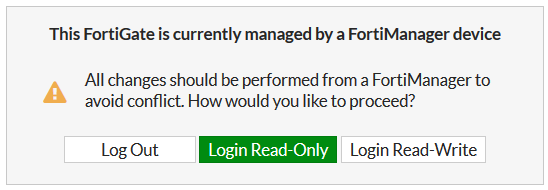
3.6 => เชื่อมต่อกับ Edge. จะมีข้อความเตือนปรากฏขึ้นเพื่อระบุว่า FortiGate ได้รับการจัดการโดย FortiManager แล้ว จากนั้นเลือก “Login Read-Only”
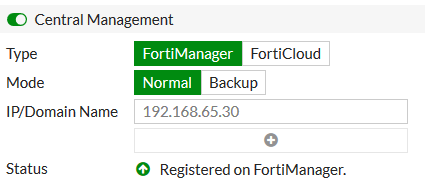
3.7 ไปที่ "Security Fabric > Settings" ภายใต้ Central Management, แถบ Status จะขึ้นว่า “Registered on FortiManager”
4. ผลลัพธ์
FortiGate devices จะอยู่ในรายการ Managed FortiGate และปรากฏเป็นส่วนหนึ่งของกลุ่ม Security Fabric โดยเครื่องหมาย * ในตารางจะบ่งชี้ว่าอุปกรณ์นั้นเป็น root FortiGate ใน Security Fabric

คลิกขวาที่ FortiGate devices อันใดก็ได้ และเลือก Fabric Topology, จะแสดง Topology ของ Security Fabric ขึ้นมา